Configure Multicast
- Multicast allows efficient one-to-many traffic distribution across Enterprise Connect by sending a single stream that is replicated only where needed.
- Enterprise Connect supports Protocol Independent Multicast (PIM) with Source-Specific Multicast (SSM) by default and optional Sparse Mode (SM) for classic multicast scenarios.
- Multicast configuration is performed centrally on VPN and on VLAN level of each site.
Prerequisites
- Supported CPE models:
- Huawei AR8140 (physical CPE, Advanced License required)
- Business Box / AR6700v-L (uCPE)
- Interworking Gateway (IWG): AR6700v-L
- Supported EC flavors: EC-M, EC-L, EC-XL
- EC-XL sites must be without sync link (NSL)
- The Multicast option must be commercially enabled on agreement level
Restrictions and Notes
- Static routing and VRRP: Multicast is not supported when customer routers use static routes pointing to VRRP virtual IPs. As a workaround, floating static routes towards the physical CPE IPs can be used.
- Multicast flow limit: A maximum of 256 multicast flows is supported per tenant.
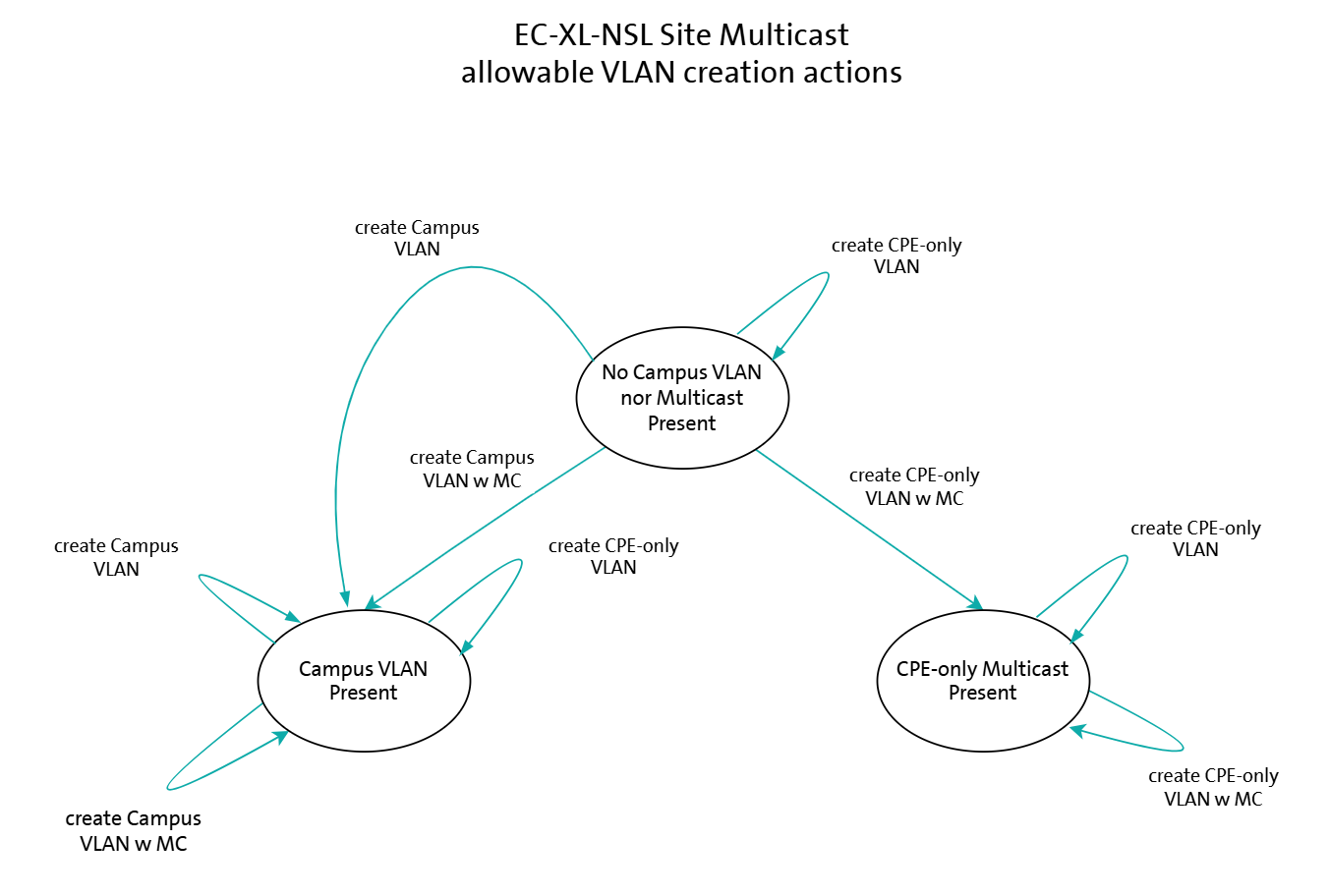
- EC-XL-NSL VLAN usage: On EC-XL sites without sync link, multicast can be configured either on Campus-wide VLANs or CPE-only VLANs. The first multicast-enabled VLAN defines the allowed usage.
- Failover behavior: In EC-XL-NSL scenarios, multicast convergence after failover can be slower due to PIM Designated Router (DR) election and WAN convergence.
- CPE-specific VLAN failover: Multicast failover is currently not supported for CPE-specific VLANs in EC-XL-NSL. If the active CPE WAN link fails, multicast traffic may be interrupted and may not recover through the standby CPE. Campus-wide VLAN multicast is therefore recommended.
Configuration
Enable Multicast on VPN Level
- Under VPN > select the corresponding VPN.
- Enable Multicast using the toggle button.
- The following options become available:
- PIM SSM (Source-Specific Multicast)
- Enabled by default and cannot be disabled
- Default SSM range:
232.0.0.0/8
- PIM SM (Sparse Mode)
- Disabled by default
- Can be enabled if required
- PIM SSM (Source-Specific Multicast)
- When enabling PIM SM, a static Rendezvous Point (RP) must be configured.
- Enter the RP IP address:
- This IP address is configured as a loopback address on every CPE attached to this VPN.
- Each CPE acts as RP.
- Click Save and submit the order.
note
Multicast cannot be disabled on VPN level as long as at least one VLAN has multicast-specific configuration.
Configure Multicast on VLAN Level
- Go to Locations > VLANs.
- Open the VLAN that should be used for multicast.
- Select the VPN on which multicast was enabled.
- Open the Multicast tab.
note
The Multicast tab is only visible if:
- Multicast is enabled on the selected VPN
- The CPE model supports multicast
- For EC-XL, the site is without sync link
- Click (+) Add IGMP / PIM.
- Select the VLAN–VPN combination.
- Choose the IGMP version:
- IGMPv2
- Only supported if PIM SM is enabled on VPN level
- IGMPv3
- Supported in all cases
- Recommended and required for SSM
- IGMPv2
- (Optional) Configure Static Joins:
- Define multicast group addresses
- When using IGMPv3, optionally specify a source address for SSM
note
The source address field is only shown for IGMPv3. Leaving it empty implicitly means “any source”.
- PIM BFD is automatically enabled when PIM SM is active and cannot be disabled.
note
To request deactivation, contact Swisscom support.
- Save the VLAN configuration and submit the order.
EC-XL without Sync Link – VLAN Usage Overview
- Campus-wide VLAN
- Used when multicast traffic must be shared across both CPEs and internal LAN segments
- Requires PIM/IGMP to be enabled on the same VLAN used for the implicit iBGP session
- For every multicast-enabled campus-wide VLAN, the CPE IP addresses between CPE 1 and CPE 2 will be swapped such that the new active CPE has the higher IP address.
- CPE-only VLAN
- Used when multicast is limited to CPE-level routing without campus-wide distribution
- No implicit dependencies to iBGP or MSDP
note
On EC-XL sites without sync link, Multicast can only be configured either on Campus-wide VLANs or CPE-only VLANs. The first multicast-enabled VLAN defines the mode and restricts further VLAN creation accordingly.
Additional Information
- Replicators and MSDP peers are handled automatically by the platform and are not configurable by the customer.
- The Dashboard provides a read-only view of automatically managed MSDP peers under Routing > Infrastructure MSDP Peer.