WLAN: Expanding settings (channel and TX power)
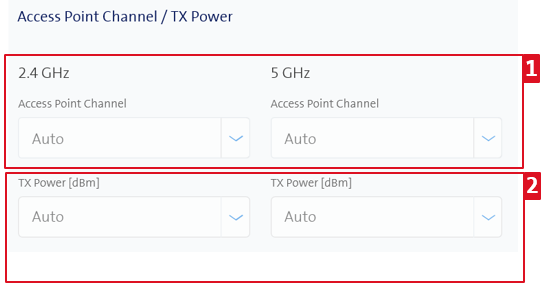
Configure access point channel and transmit power
Important: These configurations only affect the selected access point and not all access points at a location.
- You can configure the access point channel and the transmit power of the access point in the dashboard.
- You can find these functions under the corresponding access point at a location in the dashboard.
- You can set a fixed channel or leave the WLAN channel setting on Auto.
- The access point then automatically selects a suitable channel.
- You can increase the WLAN signal strength by setting a fixed channel.
- TX power is a measure of how strongly the signal is transmitted.
- The best setting is the minimum level required to maintain the signal at the boundaries of the Wi-Fi location.
Configure the frequency band and data rates
Important: These configurations apply to all access points/SSIDs in one location and not just one access point/SSID.
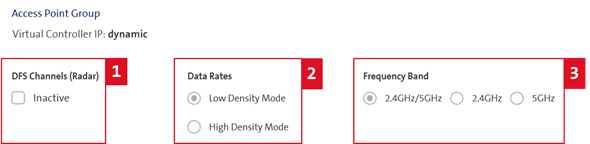
- In the dashboard, you can configure the frequency band and data rates and switch the DFS channels on or off.
- You can find these functions at the respective location under Access Point in the dashboard.
- DFS is a Wi-Fi feature that allows WLANs to use 5 GHz frequencies, which are usually reserved for radar.
- A major advantage of using DFS channels is that they use underserved frequencies to increase the number of Wi-Fi channels available.
- DFS can be deactivated if, for example, problems occur with nearby airport radars and a customer’s Wi-Fi performance is disrupted.
- Low density mode – The modulation rate set is optimised for a single access point with a low density of access points at the location.
- High density mode – The modulation rate set is optimised for a high number of access points at one location.
- Frequency band – By default, both frequencies (2.4 GHz / 5 GHz) are active, but it is only possible to activate one of them (2.4 GHz or 5 GHz).
- Power has two options:
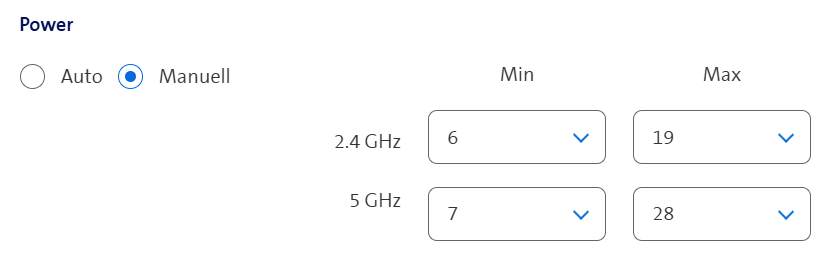
With manual the system sets these values for all the APs who selected TX Power Auto as general values. The single AP settings do optically not display the "general values", it just shows "auto" (green arrows)
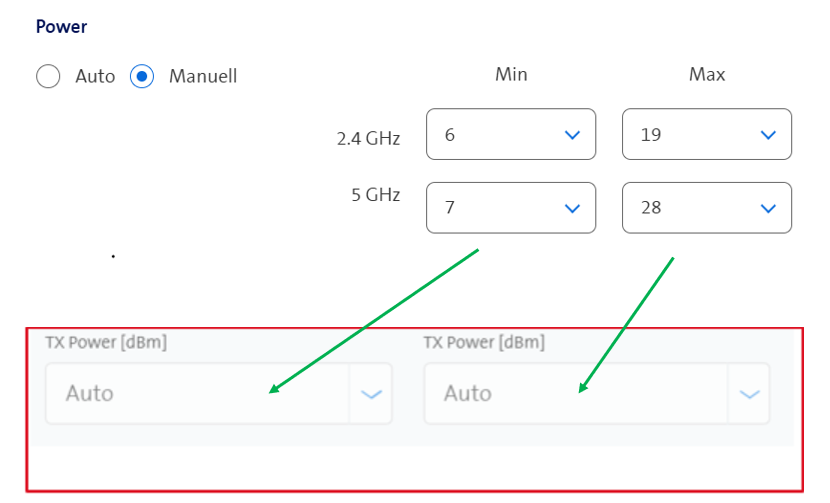
However, the single AP settings will always override these general settings.
With Auto only the settings locally selected on the AP are used.